Exploring data
Filtering, search, and similarity
Filtering is how you go from the whole collection to just the images you care about. Zegami filters in-browser over a columnar copy of the metadata, so it stays fast even on millions of rows.
Last updated 2026-05-29
Text search
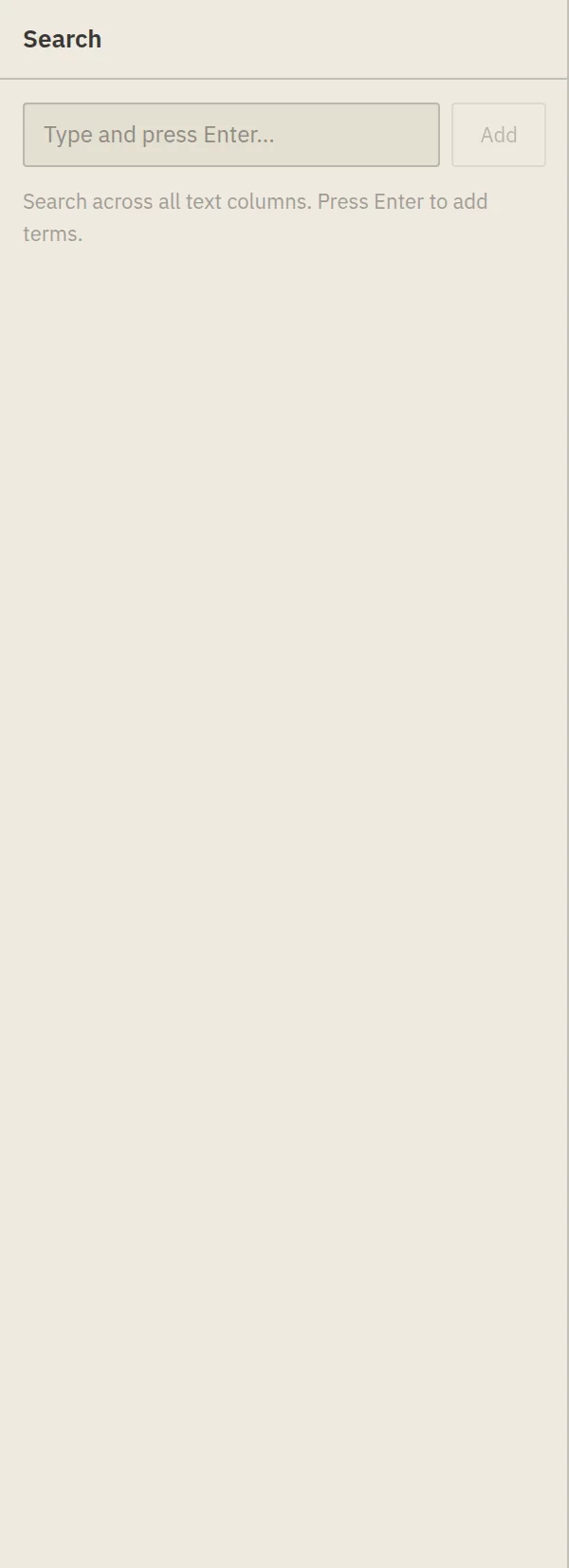
Open the Search panel from the toolbar to search across all text columns at once. Matching images stay; the rest fade out. The toolbar badge shows that a search is active.
Column filters
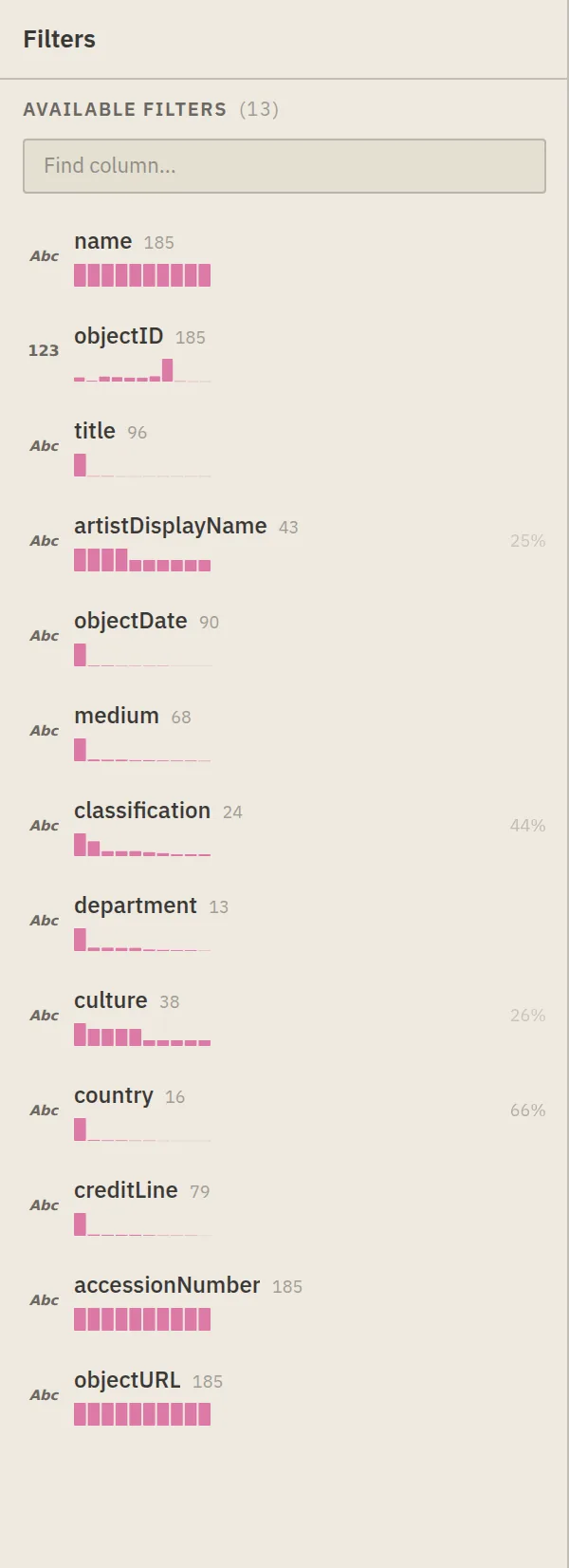
The Filters panel offers a filter widget tailored to each column’s type. Add as many as you like; they combine (AND) to narrow the set, and the toolbar badge counts how many are active.
Filter types:
- Text / string — substring match.
- Number — min/max range, with a sparkline of the distribution.
- Date — a date-range picker.
- Boolean — true / false checkbox.
- Colour — pick from a swatch palette.
- Geo / location — a geographic bounding box.
- Tags — multi-select tag chips.
Filters apply live across every view — narrowing the Grid also narrows the Scatter, Map, and Table.
Sort
Sorting lives in the Views panel (see Viewing collections): choose a column and direction. Sort and filter compose — filter first, then order what remains.
Similarity and semantic search
If the collection was processed with CLIP embeddings (toggle it in the Processing tab — see Processing & analysis), two extra tools light up:
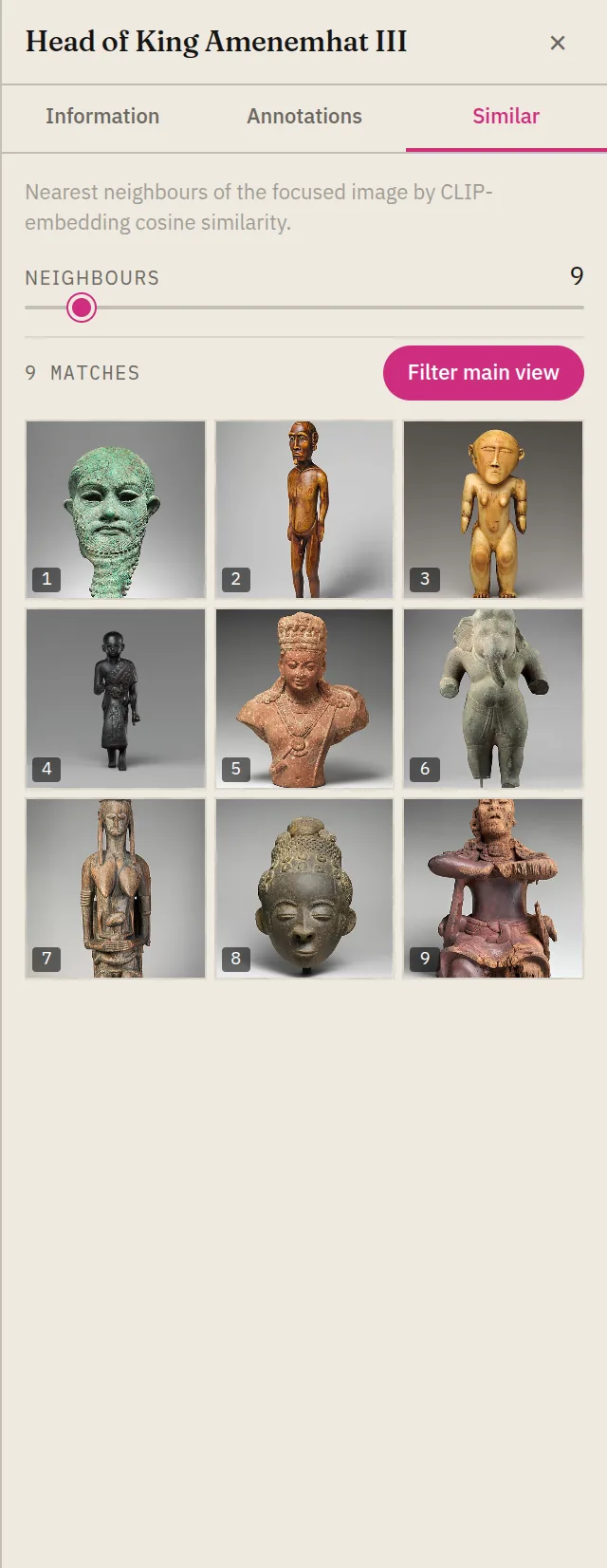
- Visual similarity — click an image, then open the Inspector’s Similar tab to see its nearest neighbours by CLIP-embedding cosine similarity. A slider sets how many, and Filter main view narrows the whole collection to those matches.
- Semantic search — search by meaning (“a red sports car”, “handwritten notes”) rather than exact metadata text.
Clearing
Each panel has a clear control, and clearing all filters returns the full collection. Tiles animate back into place rather than snapping, so it’s easy to see what changed.
See also
- Where sort and colour controls live: Viewing collections.
- Save a filtered state to reload later: the Saved views panel in Viewing collections.
- Turn on similarity: Collection settings.