Exploring data
Annotating images
Zegami's annotation tools let you mark up images directly in the viewer — region by region, with classes — and round-trip the result through the standard W3C Web Annotation format.
Last updated 2026-05-29
Opening the annotation tools
Click an image to open the Inspector, then switch to the Annotations tab. You get the drawing tools, a class picker, image adjustments, and the list of annotations on the current image.
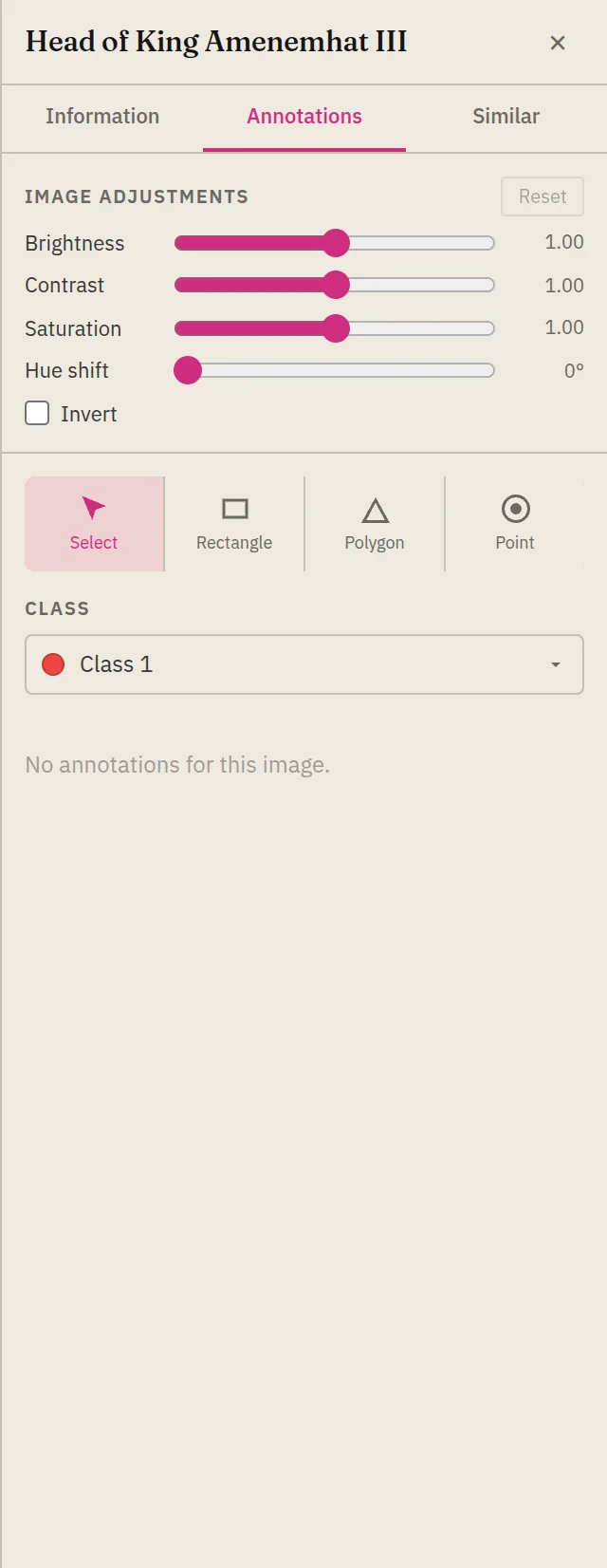
Drawing tools
- Select — the default; click an existing annotation to select, move, or delete it.
- Rectangle — drag a bounding box.
- Polygon — click to place vertices, close the shape to finish.
- Point — drop a single marker.
Each new annotation is stamped with the active class (below the tools). Annotations are stored with normalized [0, 1] coordinates, so they stay correct regardless of image size or zoom.
Classes
The class picker sets what each new annotation means (for example “defect”, “cell”, “vehicle”). Manage the class list — add, rename, recolour — from the class-management control. Classes are collection-wide, so everyone annotating uses the same vocabulary and colours.
Image adjustments
The same tab carries display adjustments — brightness, contrast, saturation, hue, invert — so you can dial in detail before marking a region. For radiology collections this is where window/level lives. Adjustments are view-only; they don’t alter the stored image.
Tags
Tags are a lighter-weight label than annotations — a flat keyword on the whole image rather than a region. Add and remove them on the Inspector’s Information tab. Then filter by tag from the Filters panel — see Filtering & search.
Import and export (W3C)
Annotations round-trip through the W3C Web Annotation format:
- Export them (alongside other formats) from the Export panel — see Exporting.
- Import existing W3C annotations to overlay them on the matching images.
Because coordinates are normalized, annotations created elsewhere line up as long as they target the same images.
See also
- Open and navigate the Inspector: Viewing collections.
- Filter by the tags you’ve applied: Filtering & search.